How to Create a Team?
Last updated: March 21, 2025
Teams in Tavily allow multiple users to collaborate by accessing a shared dashboard. This feature makes it easier for teams to work together on projects and track progress in one central location. Here’s a step-by-step guide on how to create a team and invite others to join.
1. Access the Dashboard
Go to the Tavily platform page: https://app.tavily.com/home
2. Navigate to Your Personal Title
To get started, click on the arrow icon located on the left sidebar where your personal title is displayed.
3. Click on the + Create Team Button
Once you've clicked on the arrow icon, you will see the option to Create Team. Click on the + Create Team button to begin the process of setting up your new team.
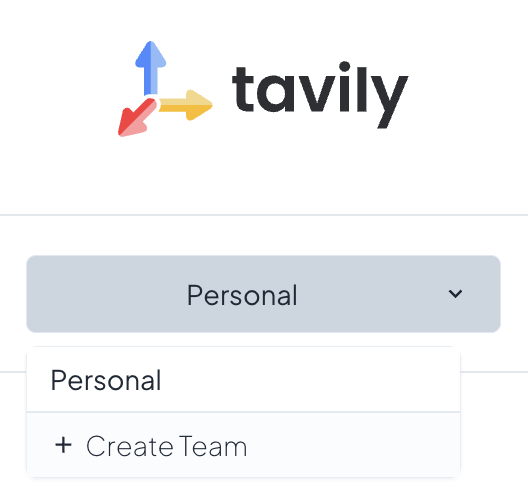
4. Enter Your Team Name
In the popup window that appears, enter a team name that best represents your group or project. Once you’ve chosen a name, click Create to proceed. Additionally, you can transfer your plan and API keys to the team by enabling this option during the setup process.

5. Invite New Members
After creating your team, you’ll be prompted to invite new members. Enter their email addresses in the provided field. You can invite multiple people at once, separated by commas.

6. Invitation Email
Once you’ve entered the email addresses and sent the invites, the invited members will receive an email with the following message:
Subject: You’ve been invited to join [Team Name] on Tavily
Email Body:
Hello,
You have been invited by [Your Name] ([Your Email Address]) to join the [Team Name] team on Tavily. Click here to accept the invitation.
After joining, your name and email address will be visible to all current and future members of the team.
This invitation will expire on [Expiration Date].
Best regards,
Tavily Team
7. Team Management
Once the invitees accept their invitations, they will automatically become members of the team. From there, they can access the team’s shared dashboard and collaborate with other members.